
Affiliate Disclaimer: TravelForBusiness.org participates in affiliate programs, including Amazon Associates, and may earn a commission from qualifying purchases at no extra cost to you.
Your laptop is the most valuable thing you carry on a business trip, and the hardware is the cheap part. The client files, the saved passwords and the email account that resets every other account are what an opportunist or a determined attacker is really after. Most laptops that go wrong on the road are not hacked in a hotel lobby; they are left in a security tray, plugged into a dodgy charger or opened next to someone who can read the screen.
This guide to laptop security business travel is written from an IT point of view: what to set up before you leave, which small pieces of gear are worth packing, what to do in airports, hotels and at the border, and what to do if the laptop disappears. All settings and rules were checked against Apple, Microsoft, CISA and CBP pages in November 2026. Use the free checklist builder further down to get a list for your own trip.
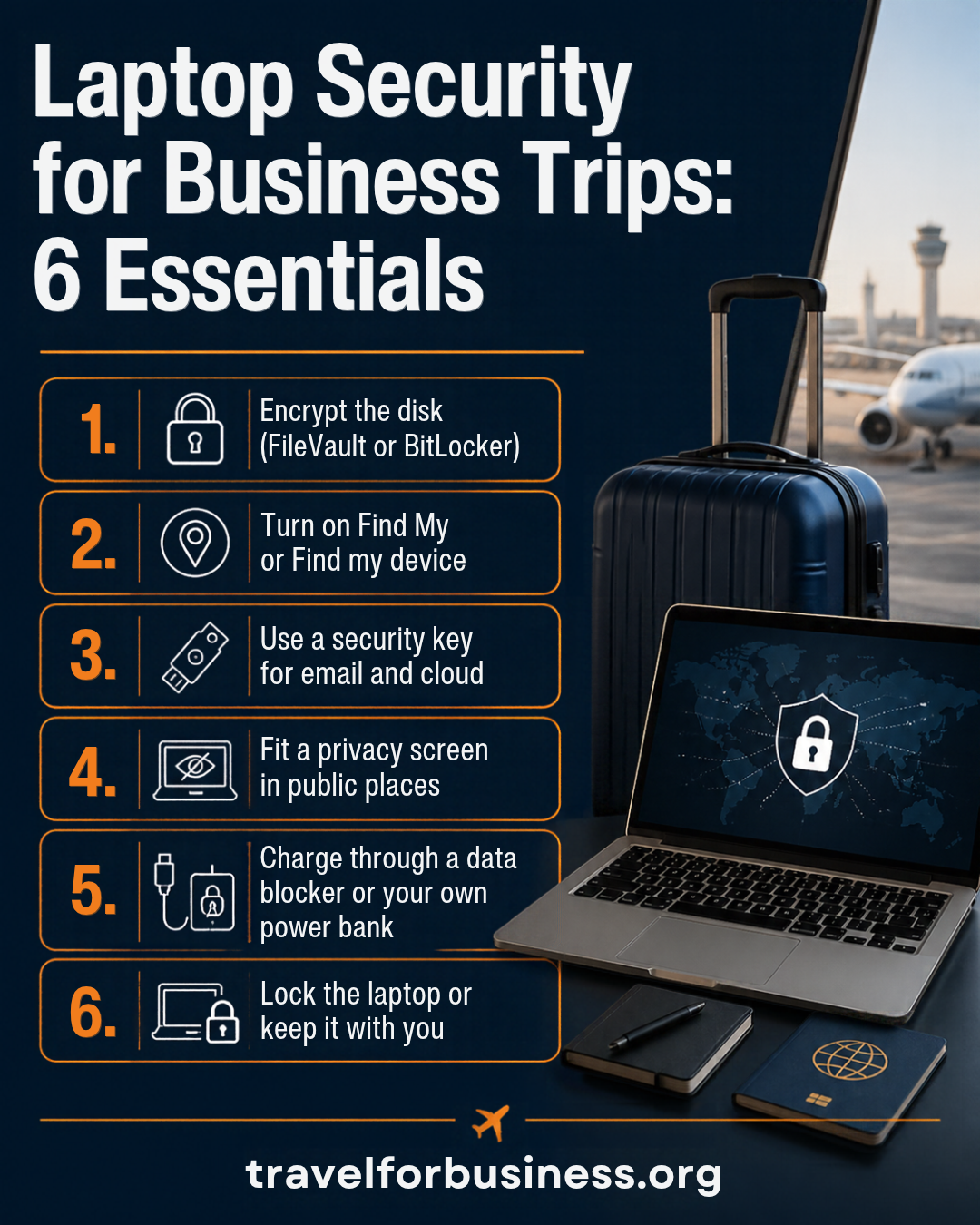
Quick summary: the six essentials
- Encrypt the disk with FileVault or BitLocker.
- Turn on remote locate and lock (Find My or Find my device).
- Protect your accounts with a security key. A YubiKey 5C NFC stops phished passwords from being enough.
- Fit a privacy screen for lounges, trains and planes: laptop privacy screens on Amazon.
- Charge safely from a wall outlet, your own power bank or through a USB data blocker.
- Lock it or keep it with you. A universal cable lock for desks, the room safe when you go out.
The Real Risks to Your Laptop on a Business Trip
Rank the threats before you buy gadgets. Roughly in order of likelihood:
- Loss and theft: forgotten at security or in a taxi, or taken from a cafe table.
- Shoulder surfing: the person next to you on a plane reads your client’s figures.
- Untrusted networks. Open hotel and cafe Wi-Fi can be watched or spoofed. CISA’s travel advice is to avoid open Wi-Fi for sensitive business and to switch to cellular data when you can (CISA).
- Untrusted USB ports: CISA also warns against charging stations you do not control.
- Border inspection. Rare, but relevant if you carry client or regulated data.
Before You Leave: Lock Down the Laptop
1. Encrypt the disk
Full-disk encryption is the most important setting: without it, anyone who removes the drive can read your files.
Mac: Macs with Apple silicon or a T2 chip encrypt data automatically, but Apple says turning on FileVault adds the layer that makes your data inaccessible without your login password. Go to System Settings, Privacy and Security, FileVault and turn it on. Store the recovery key somewhere other than the Mac, or let your iCloud account unlock the disk (Apple Support).
Windows: Device encryption is available on a wide range of devices, including Windows Home, when the laptop has a TPM and Secure Boot enabled. Turn it on under Settings, Privacy and security, Device encryption. If you sign in with a Microsoft account or a work account, the recovery key is attached to that account (Microsoft Support). Full BitLocker management is available on Windows Pro, Enterprise and Education, not on Home (Microsoft Support).
Company laptop: your IT team almost certainly enforces BitLocker or FileVault already. Ask how you get the recovery key while abroad.
2. Turn on remote locate, lock and erase
On a Mac, set up Find My before the trip. If the Mac goes missing, Apple lets you locate it, mark it as lost and erase it remotely from another Apple device or iCloud.com; the Mac must be on and online for Lost Mode to work (Apple Support).
On Windows, Find my device needs a Microsoft personal account, an administrator account and location turned on. You can then locate and lock the laptop at account.microsoft.com/devices (Microsoft Support). On a work laptop, remote wipe usually runs through your company’s device management, so save the IT helpdesk number before you go.
3. Protect your accounts, not just the laptop
Your email and cloud accounts are worth more than the laptop. Use multi-factor authentication everywhere, and for the accounts that matter most, use a hardware security key. The YubiKey 5C NFC has USB-C for the laptop and NFC for your phone, supports FIDO2 and passkeys (up to 100 passkey slots) and works with Windows, macOS, ChromeOS and Linux. It needs no battery (Yubico). Register two keys and keep the backup in a different bag.
4. Update, back up and travel light on data
- Install all operating system and browser updates and restart before you leave, not on hotel Wi-Fi.
- Back up your files and test that you can restore one.
- Remove client files you will not need on this trip. Data that is only in the company cloud cannot be read from a lost laptop.
- Set the screen to lock after five minutes or less and require a password on wake.
Travel Security Gear That Is Worth Packing
Four small items cover the risks above and together weigh less than a phone charger.
| Gear | Protects against | Good to know | Buy |
|---|---|---|---|
| Privacy screen | Shoulder surfing on planes, trains and in lounges | Magnetic versions for MacBooks; check your exact screen size | Check today’s price on Amazon |
| USB data blocker | Data transfer through public USB ports and unknown cables | Can slow fast charging; pick USB-C to C for laptops | Check today’s price on Amazon |
| Cable lock | Grab-and-go theft from desks and shared tables | Match the slot: Standard, Nano or Wedge | Check today’s price on Amazon |
| Security key | Phishing and stolen passwords | Register a backup key and keep it separately | Check today’s price on Amazon |
Privacy screen
A privacy filter darkens the screen for anyone not sitting directly in front of it. Kensington’s MagPro Elite for the 13-inch MacBook Air (2022 and newer) is a good example of the magnetic type: it limits the viewing angle to about 30 degrees on either side, clips on with magnets without blocking the lid, filters up to 30% of blue light and has a matte and a glossy side (Kensington). For Windows laptops, buy a filter for your exact diagonal and aspect ratio. Check price on Amazon for the Kensington MagPro Elite.
USB data blocker
A data blocker sits between the charging cable and your device and passes power while blocking data. That protects against “juice jacking”, where a public USB port or cable tries to talk to your device. In 2025, researchers at Graz University of Technology showed a newer variant called ChoiceJacking that could bypass the “allow data access” prompt on phones. Apple fixed it in iOS 18.4 and Google in Android 15, but Kaspersky notes that some Android devices still do not ask for authentication (Kaspersky). A data blocker can slow fast charging on some phones, so your own power bank or a wall outlet with your own charger remains the best option.
PortaPow makes small USB-C to USB-C blockers that support USB Power Delivery and are suitable for laptops (PortaPow). Check price on Amazon for the PortaPow USB-C data blocker. For airline-approved batteries, see our guide to the best power banks for business travel.
Laptop cable lock
A cable lock will not stop a thief with bolt cutters, but it stops the most common theft: someone walking off with a laptop while you are at the buffet or the coffee counter. Laptops use three slot types, according to Kensington: the Standard K-Slot (about 7 x 3 mm), the smaller Nano slot on slim business laptops, and the Wedge slot found mainly on Dell laptops (Kensington). If you are not sure, a universal 3-in-1 lock fits all three.
Most current MacBooks and many thin ultrabooks have no lock slot. Kensington’s Nano Security Slot Adapter Kit adds one with 3M adhesive tape, and works with NanoSaver locks (Kensington). Check price on Amazon for the Nano Security Slot Adapter Kit. Otherwise, use the room safe and keep the laptop with you in public.
Build Your Travel Security Checklist
A two-night domestic trip with a company laptop needs a shorter list than a week abroad with client data on your own Mac. Answer six questions and the builder creates a checklist for before you leave, in transit, at the hotel and back home, plus the gear that fits your laptop. Tick items off as you go.
Travel Security Checklist Builder
Answer six questions and get a laptop and data security checklist for this trip. Tick items off as you go.
Based on guidance from CBP, CISA, Apple and Microsoft, checked November 2026. Company policy and your IT team always come first on a managed laptop.
On the Road: Airports, Hotels and Cafes
At the airport
- Keep the laptop in your carry-on.
- At security, keep your eyes on the tray until the laptop comes out of the scanner. A TSA PreCheck membership means the laptop can usually stay in the bag.
- Charge from a wall outlet with your own charger, from your own power bank or through a data blocker. Do not use a cable you find at the gate.
- Turn off Bluetooth and AirDrop or Nearby Share when you do not need them. CISA notes that attackers may pair with an open Bluetooth connection.
In the hotel
Treat hotel Wi-Fi as untrusted. Use your company VPN, your phone’s hotspot or a travel router that puts your own encrypted network between you and the hotel. Our guide to travel routers and hotel Wi-Fi security explains the setup, and the free Hotel Wi-Fi Risk Check scores your connection in a minute. Abroad, an eSIM for business travel gives you affordable mobile data, so tethering becomes the easy option.
When you leave the room, put the laptop in the safe or take it with you.
In cafes, lounges and trains
- Sit with your back to a wall and use the privacy screen.
- Lock the screen every time you stand up: Windows key + L on Windows, Control + Command + Q on a Mac.
- Never leave the laptop on the table during a coffee run, not even locked.
- Avoid taking confidential calls in public. A good noise-cancelling headset helps you hear, but everyone around you can still hear you.
Crossing a Border with Your Laptop
US Customs and Border Protection may search electronic devices at ports of entry. In fiscal year 2024 it searched the devices of 47,047 international travelers, less than 0.01 percent of arriving international travelers, and about 90% of those were basic searches in which an officer reviews the device manually. Advanced searches, which connect external equipment to copy or analyze the contents, require reasonable suspicion and senior manager approval (CBP).
Three points from CBP’s own page matter for business travelers:
- Only data on the device. Officers may examine information resident on the device, not data stored only in the cloud, and the device is put in airplane mode first. Keeping client files in the company cloud instead of in offline copies limits what a search can reach.
- Passcodes. Travelers must present devices in a condition that allows inspection. A device that cannot be inspected may be detained. US citizens are not refused entry for that reason alone, but foreign nationals may face consequences for admissibility.
- Plan with your employer. If you carry regulated, legal or highly confidential data, ask IT or legal before the trip whether to travel with a clean loaner laptop.
Shut the laptop down fully before you land. A powered-off, encrypted laptop is locked behind your password; a sleeping one is not. Other countries have their own rules, so check the destination’s customs guidance for longer or sensitive trips.
If Your Laptop Is Lost or Stolen
Act fast, in this order:
- Company laptop: call the IT helpdesk first. They can lock or wipe it and revoke its access.
- Mac: open Find My on another Apple device or iCloud.com, mark the Mac as lost and erase it if recovery seems unlikely. Then remove it from your trusted devices (Apple Support).
- Windows: sign in at account.microsoft.com/devices, locate the laptop and lock it, then reset your password.
- Change passwords, starting with your email and cloud accounts, then everything else that was signed in on the laptop.
- Report it to the police and keep the report number. You need the serial number, so store it in your email or password manager before you travel.
How to Choose the Right Level of Protection
- Short domestic trips, company laptop, everyday files: rely on IT’s encryption and device management, pack a data blocker and keep the laptop with you.
- Frequent travel with client data: add a privacy screen, a cable lock and a hardware security key, and keep client files in the cloud rather than in local copies.
- Your own laptop as a freelancer or small business owner: you are your own IT department. Turn on encryption and Find My, back up, use a security key and write down your recovery key.
- International trips with regulated data: talk to IT or legal about a loaner laptop and a minimal data set.
IT Tips for Business Travelers
- Store the serial number, the recovery key location and the IT helpdesk number in your phone and in your email.
- Use a password manager and never save passwords in a shared or hotel computer browser.
- Keep cables, the data blocker and the security key together in one tech organizer, so you never borrow a stranger’s cable.
- Use a padded laptop compartment: our best laptop backpacks for business travel guide lists bags that open flat at security.
Final Verdict
Good laptop security business travel habits are mostly free. Turn on disk encryption and remote lock, protect your accounts with multi-factor authentication, keep the laptop in sight and stay off untrusted USB ports and open Wi-Fi. That covers the risks that actually happen on business trips.
The gear fills the gaps: a privacy screen, a data blocker, a cable lock and a security key fit in a jacket pocket. Build your own checklist with the tool above before your next trip.
Related Articles
- Travel Routers and Hotel Wi-Fi Security: A Business Traveler’s Guide
- Hotel Wi-Fi Risk Check: How Safe Is Your Connection?
- eSIM for Business Travel: How to Stay Connected Abroad
- Best Power Banks for Business Travel
- Best Tech Organizers and Cable Pouches for Business Travel
- Best Portable Monitors and Laptop Stands for Working on the Road
- How to Travel for Work Like a Pro
- Top 10 Must-Have Accessories for Efficient Business Travel
Frequently Asked Questions
Question: What is the most important laptop security setting for business travel?
Answer: Full-disk encryption. FileVault on a Mac or Device encryption or BitLocker on Windows makes the data on a lost or stolen laptop unreadable without your password. Combine it with a strong password and a short screen lock timeout.
Question: Is it safe to use hotel Wi-Fi for work?
Answer: Treat it as untrusted. Use your company VPN, your phone’s hotspot or a travel router, and avoid open networks for sensitive work. CISA advises switching to cellular data instead of open Wi-Fi for sensitive tasks.
Question: Do USB data blockers really work?
Answer: A data blocker passes power and blocks the data lines, so a public port or cable cannot exchange data with your device. It can slow fast charging. Charging from your own charger in a wall outlet or from your own power bank is just as safe.
Question: Can US customs search my laptop?
Answer: Yes. CBP may search electronic devices at ports of entry, but it is rare: 47,047 travelers in fiscal year 2024, less than 0.01 percent of arriving international travelers. Officers may only examine data stored on the device, not data held only in the cloud.
Question: What should I do if my laptop is stolen on a business trip?
Answer: For a company laptop, call IT first so they can lock or wipe it. For your own laptop, use Find My (Mac) or Find my device (Windows) to lock it, erase a Mac if needed, change your passwords starting with email and report the theft to the police.